
Why GPT Permissions Are Confusing (and Why It Matters in Canada)
You go to install a browser extension or app for a get-paid-to (GPT) platform, and the permission prompt reads like a warning label: "read and change all your data on the websites you visit." It sounds like the app wants to see your banking, your emails, everything. Most people either click "Allow" without reading it, or back away entirely and miss out on legitimate cashback and survey earnings.
Neither reaction is well-informed. GPT platforms genuinely need some level of browser or device access to track offer completions, apply cashback, or verify survey activity — that part is normal. What's missing is a plain-English translation of what these permissions actually do, paired with an understanding of GPT app permissions privacy in Canada under our own laws, not vague generic security advice written for IT administrators.
This guide breaks down browser and mobile permissions in plain terms, explains what Canadian privacy law says about consent, and gives you a five-minute checklist to audit anything you've already installed — grounded in real permission prompts you'll encounter, not hypotheticals.
What Browser Extensions Can Actually See — Decoded
Chrome and Firefox use standardized permission language that sounds more alarming than it usually is. Here's what the common phrases actually mean for browser extension permissions safety in Canada.
"Read and change all your data on the websites you visit." This is the broadest permission a browser offers, and it's genuinely necessary for cashback extensions to work — they need to detect when you're on a retailer's site, check if a cashback offer applies, and sometimes auto-apply a coupon code. It is not the same as reading your bank password or credit card number unless the extension is specifically designed maliciously. The permission describes technical capability, not intent.
Clipboard access. Some extensions request this to auto-fill coupon codes they've copied on your behalf. It's a convenience feature. A red flag is when clipboard access exists but the extension has no coupon or code-related function — that's excessive.
Tabs access. This lets an extension see which sites are open, primarily so cashback tools know when to activate. It shouldn't need to pair with camera or microphone permissions, which have no legitimate role in a cashback or offer-tracking tool at all.
Background activity / "runs when you start your browser." This keeps the extension active so offers register correctly even if you switch tabs mid-purchase. Cashback extension privacy risk here is near zero, provided the extension isn't also requesting access to unrelated data like your contacts or downloads folder.
The real test isn't whether a permission sounds broad — it's whether it matches the extension's stated function. A cashback tool reading site data to track purchases is expected. A cashback tool asking for your microphone is not.
What Mobile Apps Can Actually See — Decoded
Android and iOS handle mobile app permissions for GPT sites a bit differently, but the underlying evaluation is the same: does the permission match the feature?
Location. Legitimate for GPT apps that offer location-based tasks, such as verifying you visited a physical store, or localizing offers to your province. A red flag is background/"always" location access requested by an app whose only function is online surveys with no local component.
Camera. Some survey or GPT apps use camera access for a specific, disclosed reason — for example, scanning a receipt for a cashback claim. That's reasonable and limited. Camera access with no explained use case, especially bundled with broad photo library access, deserves scrutiny.
Contacts and SMS. This is the biggest red flag category for survey app permissions on Android and iOS. There's no legitimate reason a survey or offer-completion app needs your contact list or text messages. Apps sometimes claim this enables "referral matching," but that function can be built without harvesting your entire address book.
Notifications and storage. Low-risk in most cases — notifications tell you about new offers or reward availability, and storage access lets an app cache data or save downloaded receipts. These are worth allowing if you find the app useful, but you can always decline and re-enable later without breaking core functionality.
The pattern across both browser and mobile permissions: match the ask to the job. Anything that goes beyond what's needed to track offers, verify tasks, or process a payout is worth questioning.
Your Privacy Rights Under Canadian Law (PIPEDA)
Canada's federal private-sector privacy law, the Personal Information Protection and Electronic Documents Act, governs how commercial organizations — including GPT platforms — collect, use, and disclose your personal information. The Office of the Privacy Commissioner of Canada's PIPEDA overview lays out the core obligations: organizations need meaningful consent, must limit collection to what's needed for identified purposes, and must let individuals access and correct their own data.
Here's the nuance most people miss: tapping "Allow" on a permission prompt is not automatically the same as giving legal consent for a company to use that data however it wants. The OPC's own Report of Findings #2014-008 examined exactly this issue, concluding that consent must be meaningful and tied to a clearly identified purpose — a broad technical permission grant doesn't give an organization a blank cheque. That finding remains directly relevant to PIPEDA data privacy for GPT apps operating in Canada today, and it's echoed in ongoing reform discussions around the proposed Consumer Privacy Protection Act, which would strengthen consent and enforcement requirements further.
Practically, this means you have the right to know what a GPT platform collects, why, and to request access to or correction of your information. If a platform can't clearly explain why it needs a permission, that's not just a UX gap — it may fall short of the specific-purpose standard PIPEDA sets out. Readers asking "is CashSprint safe to use" should apply this same test to any platform: can they tell you, plainly, what they collect and why?
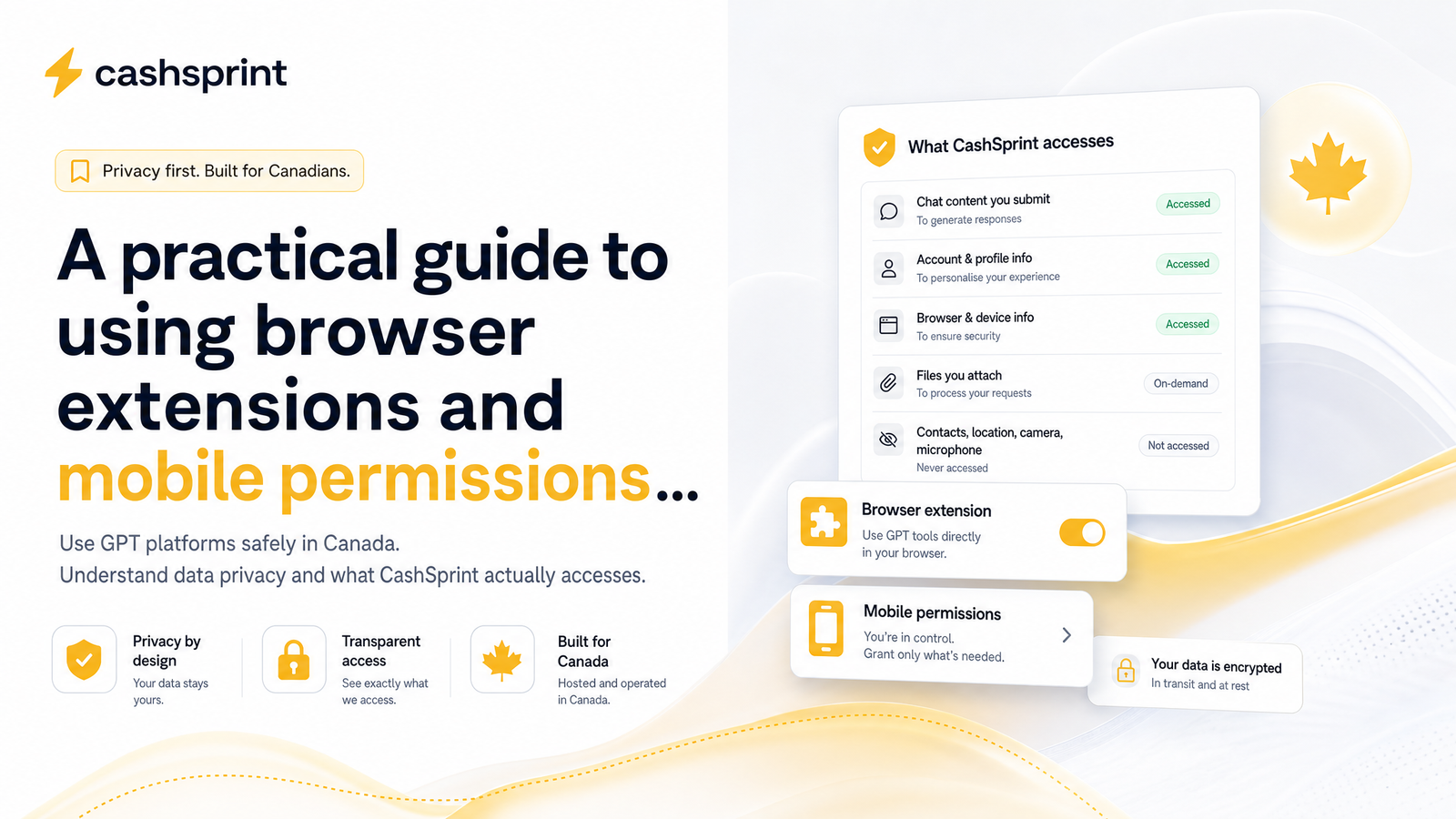
What CashSprint Actually Accesses (and What It Doesn't)
Transparency here isn't a marketing line — it's the actual answer to what data CashSprint collects. CashSprint's browser and account experience is built around one function: matching you to surveys, offers, and cashback opportunities, then verifying completion so you get paid.
What that requires:
- Account and profile information you provide directly (email, basic demographics used for survey matching)
- Tracking of offer or survey completions needed to confirm eligibility for a reward
- Payout details necessary to send funds via Interac e-Transfer, PayPal, or gift card redemption
What it does not require, and does not ask for:
- Camera or microphone access
- Contacts or SMS/text message access
- Broad, unexplained background location tracking
- Access to files or photos unrelated to reward redemption
If you're comparing this against a browser extension prompt, the permissions CashSprint's tools request should map directly to offer tracking and cashback attribution — not to unrelated device features. For more background before trusting the platform with any permissions, Cash Sprint App: What CashSprint.ca Really Is covers the mechanics, and the evidence-based legitimacy review addresses payout reliability and platform trustworthiness more broadly.
A 5-Minute Permission Audit Checklist
You don't need to be technical to do this. Set aside five minutes and work through both your browser and your phone.
On desktop (Chrome or Firefox):
- Go to your browser's extensions manager (
chrome://extensionsor the equivalent Firefox add-ons page). - Click "Details" on each installed extension and review exactly what permissions it holds.
- Ask whether each permission matches the extension's actual function — a cashback tool needing site data is fine; one needing clipboard and downloads and browsing history is worth a second look.
- Remove anything you don't recognize or no longer use. Unused extensions are pure risk with no benefit.
For a deeper technical explanation of what these permissions expose and how they can be misused, CrowdStrike's guide to browser extension risks is a solid neutral reference.
On mobile (Android or iOS):
- Go to Settings > Apps > [App name] > Permissions on Android, or Settings > Privacy & Security on iOS, listed by permission type.
- Review each permission the app currently holds and toggle off anything that doesn't match a feature you actually use.
- Switch location access to "While Using the App" rather than "Always," unless you specifically rely on always-on location features.
- Revisit this list every few months, especially after app updates, since new versions sometimes request expanded access.
Knowing how to check app permissions on Android and iOS this way turns a vague worry into a five-minute habit — and it applies to every app on your phone, not just GPT platforms.
Frequently Asked Questions
Is it safe to install a browser extension for a GPT or cashback site in Canada?
Generally yes, provided the extension's permissions match its stated function — reading site data to track cashback offers is normal and expected. Risk increases when an extension requests permissions unrelated to its purpose, such as camera or clipboard access with no coupon feature to justify it. Checking the permissions list before installing, and reviewing it periodically after, is the safest approach.
What permissions should I never grant to a survey or GPT app?
Contacts, SMS/text messages, and camera or microphone access with no clearly disclosed purpose are the biggest red flags. A survey or offer-tracking app has no legitimate need for your address book or call logs. If an app requests these without explaining why, treat it as a warning sign rather than a formality to click through.
Does PIPEDA require companies to tell me what data they collect?
Yes, PIPEDA requires organizations to identify the purposes for collecting personal information and obtain meaningful consent tied to those purposes. The OPC's guidance makes clear that consent must be specific, not a blanket agreement bundled into a permission prompt. You also have the right to ask a company what personal data it holds about you and request corrections.
What does CashSprint access when I use its extension or app?
CashSprint accesses account and profile details you provide, information needed to verify survey and offer completions, and payout details required to process Interac e-Transfer, PayPal, or gift card rewards. It does not request camera, microphone, contacts, SMS, or broad background location access, since none of those are needed to track offers or deliver payouts.
How do I revoke permissions I already gave to a browser extension or app?
On desktop, open your browser's extensions manager, click into the extension's details, and remove or restrict its permissions directly. On mobile, go to your device's Settings menu, find the app under App Permissions, and toggle off anything unnecessary — this takes effect immediately without needing to uninstall the app.
Can a GPT app sell my data to third parties in Canada?
Not without meaningful, purpose-specific consent under PIPEDA — organizations must disclose how personal information is used and can't repurpose it for undisclosed reasons like third-party sale without informing you. If a platform's privacy policy is vague about third-party sharing, that's worth questioning before you sign up or grant additional permissions.
Once you've run through the checklist above, take five more minutes to look at exactly what CashSprint's own extension or account settings request on your device — you'll find it matches the transparent breakdown described here. That kind of direct verification, rather than a marketing promise, is the real basis for trust. When you're ready, continue earning with Cashsprint and put your reviewed permissions to work toward your next payout.