
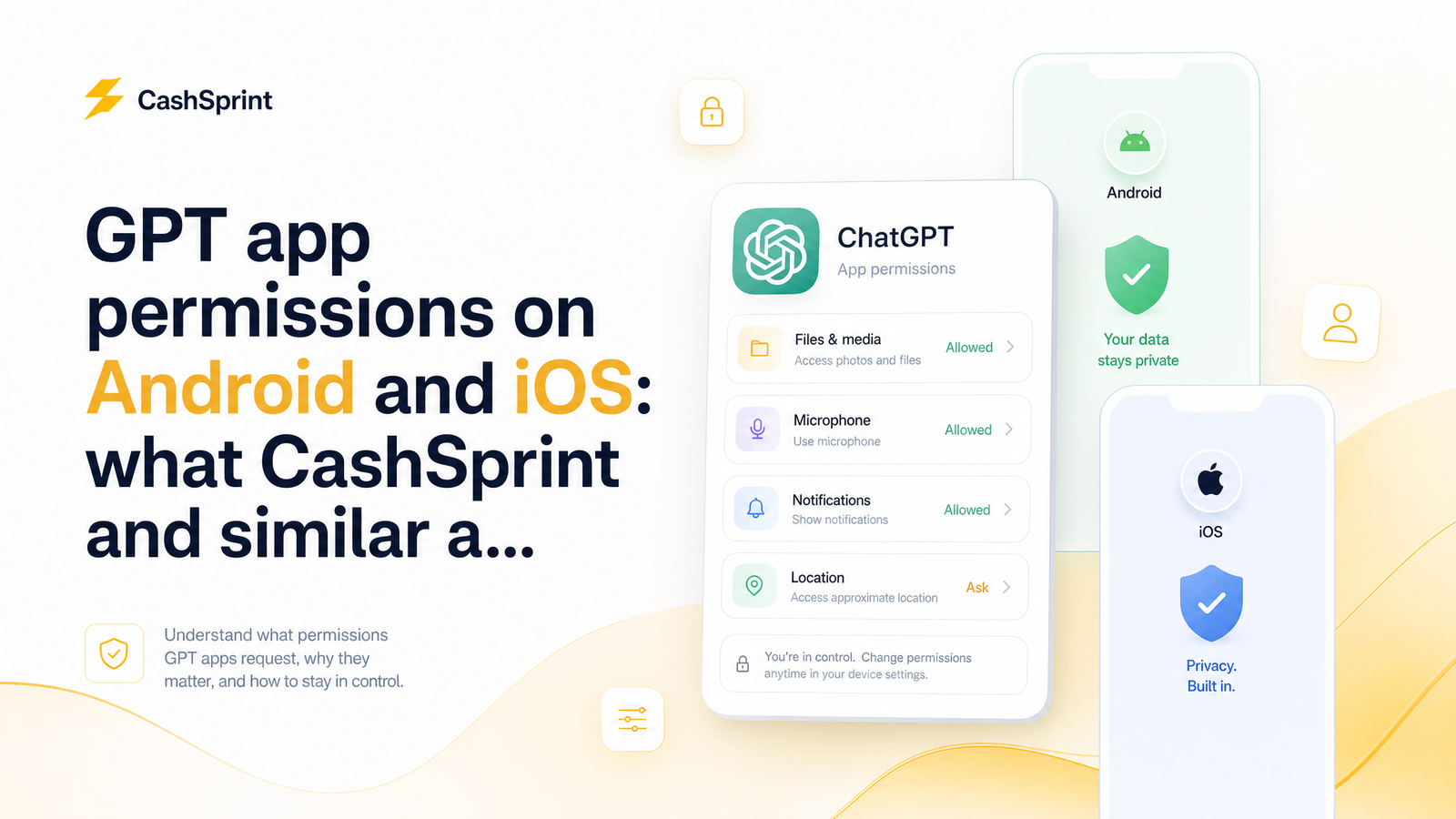
Canadians earning extra cash through surveys, offers, and cashback apps face a question most phone-security guides never address: which permissions does a legitimate get-paid-to (GPT) app actually need, and which ones signal a data-harvesting clone? Generic "how to secure your phone" articles won't tell you whether a rewards app asking for your contacts is normal or a scam. This is the GPT-specific answer.
Understanding GPT app permissions in Canada isn't about becoming a security expert — it's about knowing what's proportionate for the category, checking it in under five minutes on your phone, and recognizing when an app has overreached.
What Permissions Do GPT Apps Actually Need?
A survey, offer-wall, or cashback marketplace is fundamentally a data-light business: it shows you tasks, tracks completion, and pays you. That means what permissions does a survey app need has a short, honest answer.
Genuinely functional permissions:
- Internet/network access — required for everything the app does, from loading surveys to confirming a payout.
- Notifications — alerts for new offers, survey availability, or cleared rewards. Optional, but useful.
- Camera — only relevant if the platform offers receipt-scan cashback, where you photograph a purchase receipt to claim a rebate. No receipt-scan feature means no reason for camera access.
- Storage/photo access — sometimes needed to save or upload a screenshot of a completed offer or gift card confirmation for support purposes.
That's essentially the full legitimate list. Location can occasionally be justified if an offer wall serves geo-targeted deals (a coupon valid only in Ontario, for example), but it should be optional, not mandatory, and never running in the background. GPT app data privacy in Canada should look boring: your app knows what tasks you completed and where to send your payout, not what you're texting or who's in your contact list.
Anything beyond that list should make you pause. The next two sections show exactly where to look on your device to confirm what an app can actually access — not just what it claims to need.
Android Permissions: What to Look For and How to Check
Android separates permissions into three tiers, per Google's own developer documentation: install-time permissions (low-risk items granted automatically, like network access), runtime permissions (sensitive access — camera, location, microphone, contacts — that trigger an on-screen prompt the first time it's needed), and special permissions (high-privilege access like accessibility services or device admin, requiring a deliberate settings change and which should almost never apply to a rewards app).
To check app permissions on Android:
- Open Settings > Privacy (or Privacy & Security, depending on your device).
- Tap Permission Manager. This lists every permission category — camera, location, microphone, contacts, SMS — and shows which apps currently have access.
- Tap any category (say, Camera) to see which apps can use it, and switch to Allowed / Allowed only while in use / Denied as needed.
- Open Privacy Dashboard (also under Settings > Privacy) to see a timeline of which apps actually used sensitive permissions in the last 24 hours — not just what they're allowed to do, but what they did.
An app can hold camera permission without ever using it, but the Privacy Dashboard shows real activity. If a GPT app you rarely use for receipt scanning shows up accessing your microphone or location repeatedly, that's worth investigating. For device-specific navigation on Pixel and Galaxy phones, Android Central's permission guide walks through the exact menu paths, which shift slightly across manufacturers.
iOS Permissions: What to Look For and How to Check
iOS handles this differently. Every sensitive permission — camera, contacts, location, microphone — triggers an individual prompt the first time an app requests it, and you can allow or deny each independently rather than accepting a bundle. Apple also requires Privacy Nutrition Labels on every App Store listing, a plain-language summary of what data an app collects and whether that data is linked to your identity or used to track you across other apps and websites.
App Tracking Transparency (ATT) is a separate, specific prompt: it governs whether an app can track your activity across other companies' apps and sites for advertising purposes. A GPT app has no legitimate reason to request this — it doesn't need to follow you around the internet to serve you a survey. If a rewards app pushes hard for tracking permission, treat it as a red flag, and you can always deny it — Apple explains exactly what happens if you decline (the app simply can't link your activity to outside data).
To check what apps access on your iPhone:
- Go to Settings > Privacy & Security, then scroll to see per-category lists (Camera, Contacts, Location Services, etc.) showing which apps have access.
- Turn on the App Privacy Report: still under Settings > Privacy & Security, tap App Privacy Report and enable it. Give it a few days to collect data.
- Once populated, the report shows exactly which permissions each app used, how often, and which third-party domains it contacted — genuinely one of the most useful tools iOS offers.
Apple's support documentation covers the full setup if you want the official walkthrough. The App Privacy Report is arguably more transparent than Android's Privacy Dashboard because it also surfaces network domains contacted, not just device permissions used.
Red Flags: Permissions a Legit GPT App Should Never Need
This is where cashback app permissions on Android (and iOS) separate real platforms from scam clones. None of the following have any functional purpose for a survey, offer, or cashback app:
- SMS/read messages — a legitimate app never needs to read your texts. This is a classic GPT app scam permission used by malicious clones to intercept one-time passcodes or banking verification codes.
- Call log access — irrelevant to earning rewards; typically harvested for data resale or social-engineering profiles.
- Contacts — a real GPT platform doesn't need your address book. Apps that request this are usually building referral-spam lists or reselling contact data.
- Accessibility service — a powerful permission meant for assistive technology, but malware abuses it to read screen content and simulate taps in other apps. No survey app needs it.
- Device admin rights — grants near-total control over a phone, including the ability to lock it or wipe data. There is zero legitimate reason a rewards app would ask for this.
If an app requests any of these, check its Google Play Data Safety section (Play Store listings disclose collected data types under "Data safety") or its App Store Privacy Nutrition Label before installing anything. A mismatch between what the app claims to do and what it asks to access is the single clearest scam signal in this category.
How CashSprint Handles Permissions
CashSprint follows the least-privilege principle: request only what the platform functionally needs, nothing more. Because CashSprint operates primarily as a browser-based platform rather than a permission-hungry native app, its footprint on your device is intentionally small — there's no request for contacts, SMS, call logs, or accessibility access, because none of that is relevant to browsing offers, completing surveys, or tracking your cashback balance.
If you're wondering is CashSprint safe on my phone, the practical test is the one this article just walked you through: open your permission settings and check what's actually being requested. You should see network access and, at most, notification permissions — nothing resembling the red-flag list above. For more on how the platform itself is built, this breakdown of what CashSprint.ca really is explains the web-vs-app distinction, and the evidence-based legitimacy review covers the broader trust picture beyond permissions alone.
Your 5-Minute Permission Audit Checklist
Run this app permission audit checklist across your GPT and cashback apps right now:
- Android: Settings > Privacy > Permission Manager — scan Camera, Microphone, Location, Contacts, and SMS categories for any rewards app that shouldn't be there.
- Android: Open Privacy Dashboard to see what's actually been accessed in the last 24 hours, not just what's allowed.
- iOS: Settings > Privacy & Security — review each permission category for GPT and cashback apps.
- iOS: Enable App Privacy Report if you haven't already, and check back in a few days for real usage data plus contacted domains.
- Both platforms: Revoke anything unnecessary. Set camera/location to "Allowed only while in use" rather than "Always," and deny ATT prompts on iOS unless you have a specific reason to allow tracking.
- Both platforms: If you find SMS, contacts, call log, accessibility, or device admin access on any rewards app, uninstall it and report it through the relevant app store.
Do this once, and repeat it every few months or whenever you install a new GPT app — permissions can change with app updates, so a one-time check isn't a permanent guarantee.
Run this audit on your own device today — it takes less time than one survey. Once your permissions are clean, Cashsprint lets you earn through surveys, offers, and cashback with a minimal footprint, and cash out via Interac e-Transfer, PayPal, or gift cards. For the payout side of the trust equation, it's worth reading the legitimacy review linked above alongside CashSprint's guidance on linking payout methods safely.
Frequently Asked Questions
Does CashSprint need access to my camera or contacts to work?
No. CashSprint operates primarily as a browser-based platform and doesn't require contacts, SMS, or call log access to function. Camera access is only relevant to apps offering receipt-scan cashback features, and even then it should be optional and clearly tied to that specific function.
Why does a survey app ask for location permission?
Some legitimate survey and offer platforms use location to serve geo-targeted deals, such as a coupon only valid in a specific province or city. It should always be an optional, "while in use" permission rather than mandatory or running constantly in the background — if it's required just to open the app, that's disproportionate.
How do I see what an app on my Android phone has accessed recently?
Open Settings > Privacy > Privacy Dashboard, which shows a timeline of which apps used sensitive permissions like camera, microphone, or location in the last 24 hours. This differs from the Permission Manager, which shows what's allowed rather than what was actually used.
What is the iOS App Privacy Report and how do I turn it on?
The App Privacy Report, found under Settings > Privacy & Security, shows exactly which permissions each app used, how often, and which third-party domains it contacted. Enable it there and give it a few days to collect meaningful data before reviewing.
Is it a red flag if a rewards app asks to read my text messages?
Yes, this is one of the clearest scam signals in the GPT category. Legitimate survey and cashback apps have no functional need to read SMS messages; this request is commonly used by malicious clones to intercept one-time verification codes.
Can I use a GPT app safely without granting every permission it requests?
Yes, in most cases. Legitimate GPT apps are built to keep working even if you deny non-essential permissions like camera or location, since only your account activity and internet connection are truly required — deny anything that doesn't map to a feature you actually use.