
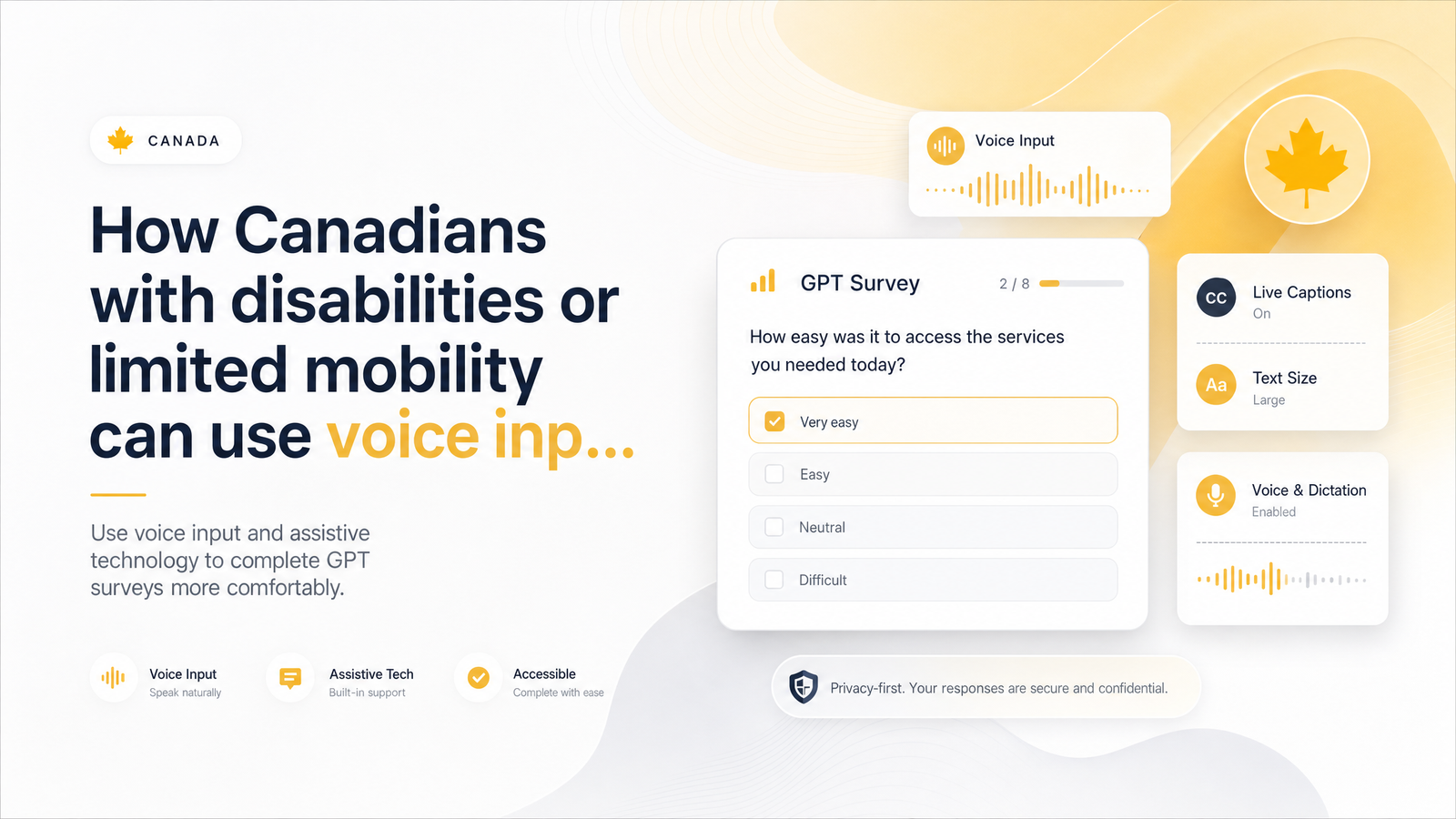
You Don't Need a Mouse to Earn: Why Assistive Tech and GPT Work Well Together
Most survey platforms and offer walls assume a user who can hold a mouse steady, click precisely, and type for long stretches. That shuts out a huge number of capable, motivated earners. According to the 2022 Canadian Survey on Disability, 27% of Canadians aged 15 and older live with a disability. Statistics Canada has also found that unmet accommodation needs remain a real barrier to full participation in paid work, including flexible, from-home opportunities.
Here's the encouraging part: get-paid-to (GPT) work is mostly text and clicks — reading a question, selecting an answer, tapping through a game screen, filling a form. That's exactly the kind of interaction voice input, switch access, and screen readers already handle well. Using assistive tech for GPT surveys in Canada isn't a workaround; it's a legitimate, comfortable way to do tasks that were never actually mouse-dependent to begin with. This guide covers the free and low-cost tools that make hands-free or reduced-mobility survey taking realistic, plus setup choices that keep sessions comfortable and glitch-free.
Free Voice Input Tools Built Into Your Device
You likely already own everything needed to start. No downloads, no subscriptions.
Windows Voice Access is built into Windows 11 and lets you navigate, click, and dictate text using only your voice — saying "click submit" or "scroll down" works the same as physically doing it. It suits form-heavy GPT tasks: demographic questions, radio buttons, short open-ended answers. Microsoft's documentation on using Voice Access to control your PC and author text is a good first stop. It works best on pages with clearly labelled buttons and fields, which most reputable survey routers have.
Apple Voice Control and Dictation cover Mac and iPhone/iPad. Voice Control lets you say numbers overlaid on clickable elements ("click 14") for precise navigation, while Dictation handles free-text answers. Since much GPT activity now happens on mobile, a reliable voice option on iOS matters as much as on desktop.
Google Voice Access on Android works similarly, overlaying numbers on tappable items and supporting scrolling, swiping, and text entry by voice. It's free, easily installed from the Play Store, and documented in background detail on Wikipedia's Voice Access entry. For Canadians whose primary device is a phone, this is often the single most useful tool here.
Voice typing in browser-based tools (the same technology behind Google Docs voice typing) can also fill long open-text survey boxes without touching a keyboard — useful when a survey asks for detailed feedback rather than multiple choice.
None of these tools cost anything, and all four can be set up in under fifteen minutes. Trying each for a short session is the fastest way to find which matches your device and the GPT tasks you do most.
Beyond Voice: Switch Access, Screen Readers, and Eye Tracking
Voice input assumes you can speak comfortably and consistently, which isn't true for everyone — some readers have speech-related disabilities, work in shared or noisy spaces, or find sustained talking tiring. Several alternatives fill that gap.
Switch access lets you control a device using one or two physical switches (a button, a puff-activated switch, or a head movement sensor) paired with on-screen scanning. It's slower than voice for most tasks but works reliably for clicking through offer walls, games, and forms when speech isn't an option.
Screen readers like NVDA (free, Windows) and JAWS (paid, Windows), along with VoiceOver (built into Apple devices), read page content aloud and let users navigate by keyboard shortcuts instead of a mouse. Compatibility varies by platform: well-coded surveys with proper labels and logical tab order work smoothly, but some offer walls rely on visual drag-and-drop games or image-based CAPTCHAs that don't translate well to audio. If you rely on a screen reader, favour surveys and offer types with simple text-based questions over highly visual games, at least until you've tested a specific offer.
Dragon Professional / Dragon NaturallySpeaking is the paid heavyweight in speech recognition, and the honest answer to "is it worth buying just for surveys?" is: usually not. Free tools like Windows Voice Access have closed much of the accuracy gap for everyday form-filling. Dragon earns its price for users who need extensive custom voice commands, dictate large volumes of free text daily, or already use it for work — not purely to unlock GPT earnings.
Eye tracking hardware remains a smaller, more expensive category, but it's worth mentioning for readers with very limited hand and speech ability. It pairs well with switch scanning software and handles click-based games competently, though typing long answers is slower than with voice.
Setting Up a Comfortable GPT Session: Browser, Device, and Workflow Tips
A few practical choices make a bigger difference than the tool itself.
Stick to one main browser configured for accessibility — Chrome and Edge both have mature voice and screen-reader support, and consistency avoids re-learning quirks each session. On mobile, native apps sometimes work better with Voice Access/Voice Control than mobile browser tabs, since overlay numbering is more predictable on app layouts.
Structure sessions short and deliberate rather than open-ended. Thirty minutes with a break beats two hours pushing through fatigue, and fatigue is exactly what causes rushed clicks, missed logic-check questions, and disqualifications. Choose offer types deliberately: short surveys with straightforward multiple-choice questions are easier to complete accurately by voice than long, branching surveys with matrix grids. Simple tap-based games are generally more voice-and-switch-friendly than drag-and-drop or timed-reflex games, which assume fast, fine motor control.
Before starting a long survey, check whether it shows a progress bar or saves partial responses — many survey routers don't reliably resume a partially completed survey, so if you're unsure your session will hold up, start with a shorter task and build up. Keep a simple note (in Windows Voice Access's own text field, or a phone notes app) of which offers you've started, so a dropped connection or a tired-hands break doesn't mean losing track of progress across multiple browser tabs.
When Voice or Assistive Input Causes Tracking Glitches
Slower, paced input from voice commands or switch scanning can occasionally look different to a survey router's fraud-detection scripts than fast, human mouse movement — a real and understandable worry, not a paranoid one. In practice, most legitimate GPT platforms and survey routers tolerate a wide range of interaction speeds, since older adults, mobile users, and people on slower connections all produce similar patterns. Genuine flags are far more often triggered by rapid-fire clicking, copy-pasted answers, or inconsistent demographic responses than by deliberate, voice-driven navigation.
If an offer doesn't credit after a completed survey, that's a separate, common issue with its own troubleshooting steps — duplicating that guidance here would only bury the accessibility advice this article is meant to deliver. The short version: don't assume your input method caused it, and follow CashSprint's dedicated non-credit troubleshooting process rather than guessing.
Getting Verified and Paid Comfortably
Two friction points come up for almost every GPT user eventually: verifying your identity and choosing how to get paid. Both can involve fine motor tasks — photographing a document, typing banking details — worth planning for rather than discovering mid-process.
For verification steps that ask for a photo or scanned ID, using your phone's voice-triggered camera shutter (available through both Android Voice Access and Apple Voice Control) removes the need to steady a device and tap a screen simultaneously. For payout, some methods require less manual data entry than others — Interac e-Transfer, PayPal, and gift cards differ in how much information you need to type in and how many confirmation steps they involve. CashSprint's payout options ranked by speed guide breaks down each method, worth reading before you pick one so you're not typing out new banking details every time you cash out. If you're new to the platform and want reassurance before committing your time, the evidence-based CashSprint review is a useful starting point.
Frequently Asked Questions
Can I use CashSprint entirely with voice commands and no mouse or keyboard?
Largely yes, for most surveys, offer walls, and simple games, using Windows Voice Access, Apple Voice Control, or Android Voice Access to navigate and dictate answers. Some visually heavy games or drag-and-drop tasks may still be easier with a switch device or occasional manual input, so test a short offer first to confirm comfort before relying on voice exclusively.
What's the best free voice input tool for someone with limited hand mobility in Canada?
There's no single best option — it depends on your device. Windows Voice Access suits desktop form-filling, Apple Voice Control/Dictation covers Mac and iPhone, and Android Voice Access handles phone-based offer walls and games; all three are free and already built into their respective operating systems.
Do screen readers work well with GPT survey sites and offer walls?
Text-based surveys with clear labels and logical navigation generally work well with NVDA, JAWS, and VoiceOver. Visual, image-heavy offer walls or drag-and-drop games are less consistent, so screen reader users often get better results prioritizing text-based survey formats over highly graphical tasks.
Is Dragon NaturallySpeaking worth buying just for taking online surveys?
Usually not, since free built-in tools like Windows Voice Access now handle most survey navigation and short text entry effectively. Dragon Professional is worth its cost if you already dictate large volumes of text for work or need advanced custom voice commands beyond basic form-filling.
Will using assistive tech or voice input get my survey answers flagged as bot activity?
Deliberate, paced input from voice or switch access rarely triggers fraud flags on its own, since legitimate platforms are built to accommodate a wide range of human interaction speeds. Flags are far more commonly caused by rapid repetitive clicking or copy-pasted text answers than by assistive technology use.
What if my hands get tired partway through a survey — can I save progress and continue later?
It depends on the individual survey router, since not all reliably save partial responses. Because of this, it's safer to start with shorter surveys or offers when you're unsure how much stamina a session will take, and build up to longer ones once you know your setup handles them comfortably.
Ready to test your setup? Log into Cashsprint and try a short session — a single offer wall or a five-minute survey — before committing to anything longer, so you can confirm your voice or assistive tech setup feels comfortable first. When you're ready to cash out, the identity verification steps are worth reviewing ahead of time so nothing catches you off guard mid-process.